
Connect in settings
Connect Rect to ChatGPT
Connect once, then keep chatting normally. With Rect available, ChatGPT can open a ready-made app when a decision, review, or plan needs a screen.
Copy the official URL.
- Use only the official connection at .
- Sign in through your browser. Never paste a password into chat.
- Revoke the connection later from Rect settings.
Connect in three steps.
- 01
Turn on Developer mode
Open your profile menu, choose Settings, then Security and login. Scroll to Developer mode and turn it on.
- 02
Add Rect to ChatGPT
Open Plugins from the sidebar, choose Create app (+), and enter Rect with the server URL above. Keep OAuth selected, accept the safety notice, then choose Create.
- 03
Keep chatting normally
Approve the Rect sign-in in your browser. Once Rect appears under Installed, return to chat and ask for the outcome as usual.
Here’s exactly where to click.
ChatGPT may move a label from time to time. Look for these two screens and you’ll be connected in a couple of minutes.
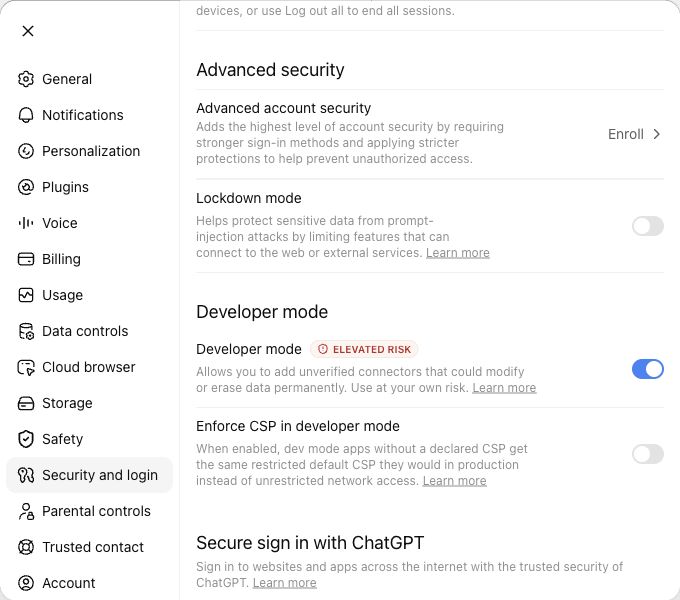
Enable Developer mode.
Open your profile menu, then go to Settings → Security and login. Scroll to Developer mode and turn it on.
 Open full size
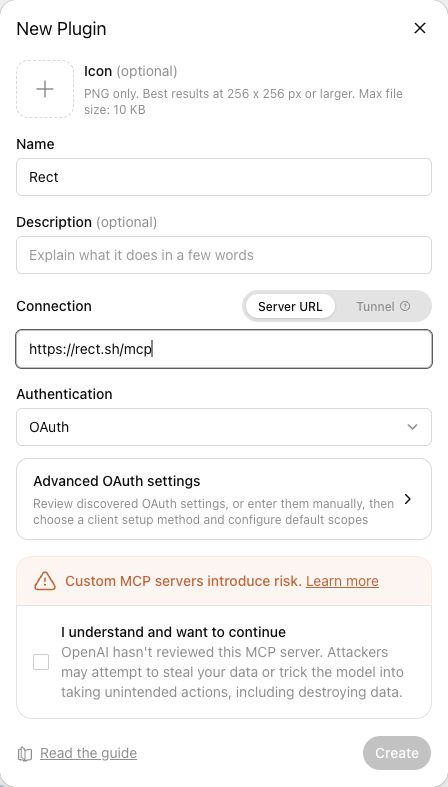
Add the Rect connection.
Open Plugins in the sidebar and choose Create app (+). Name it Rect, paste as the Server URL, and leave OAuth selected.
The safety notice is expected for any custom MCP server. Check the acknowledgement, choose Create, then approve the Rect sign-in in your browser.
 Open full size
Developer mode and custom tool availability can depend on your ChatGPT account and workspace policy.
After setup
Try an ordinary request.
No need to mention Rect. This prompt is intentionally written like a normal conversation.
We have three possible launch strategies. Help my team compare the tradeoffs and choose one.